Video walkthrough (0:41). Captions included.
Notes are the part of the job that follows you home. EMRFlow Solo Practice takes most of that off your plate: you describe the session in a few plain words, and EMRFlow drafts the full note in the format you already write in. You read it, change anything that isn't right, and nothing is final until you say so.
This works the same way in the app on your phone or tablet and in the web app at app.emrflow.com. The screens below are from the phone app, and the two small differences are called out where they come up.
1. Start a note
On the Home screen, tap New Session Note. You can also open Session Notes and use the plus button.
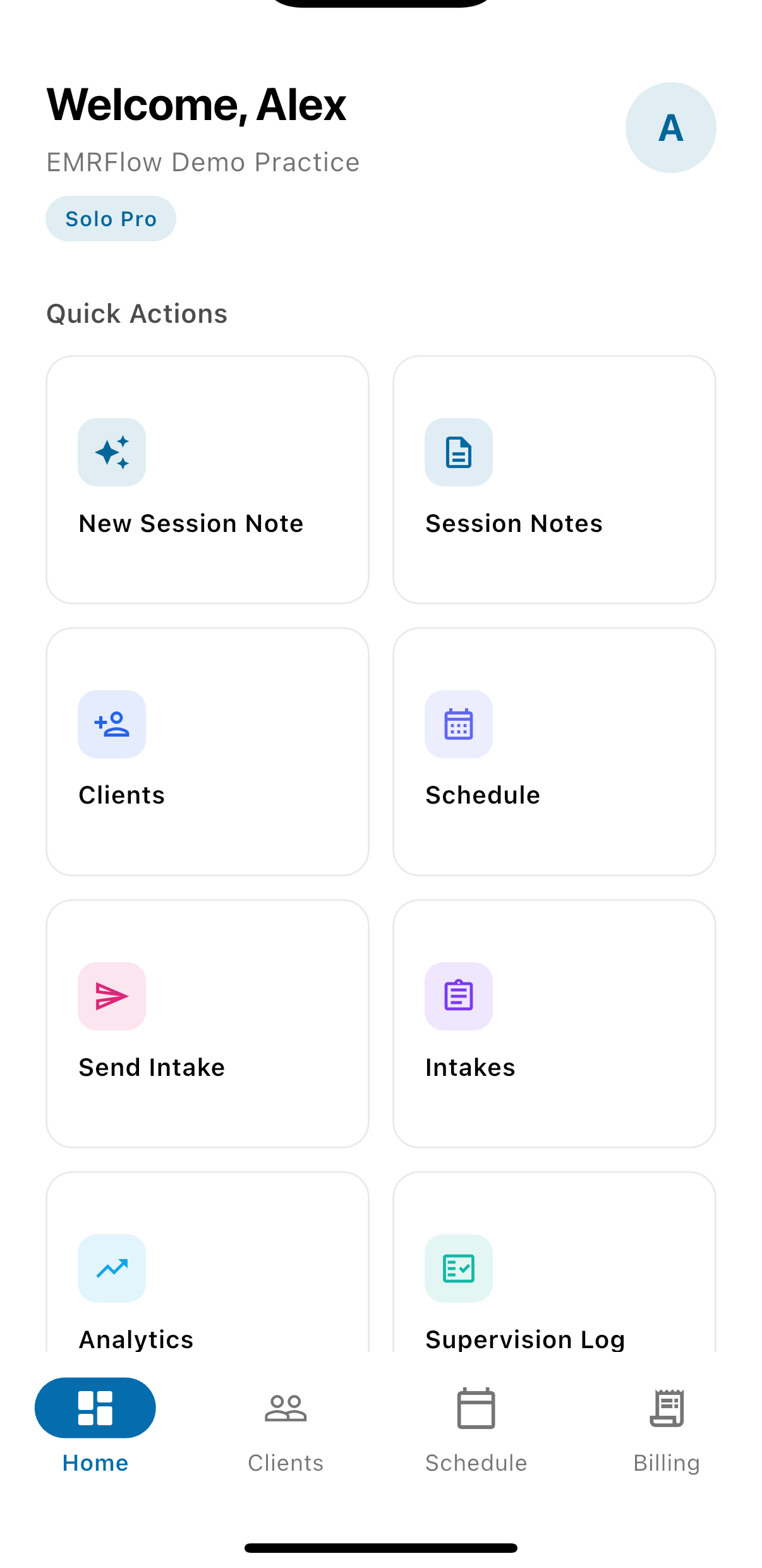
2. Pick the client, the format, and the length
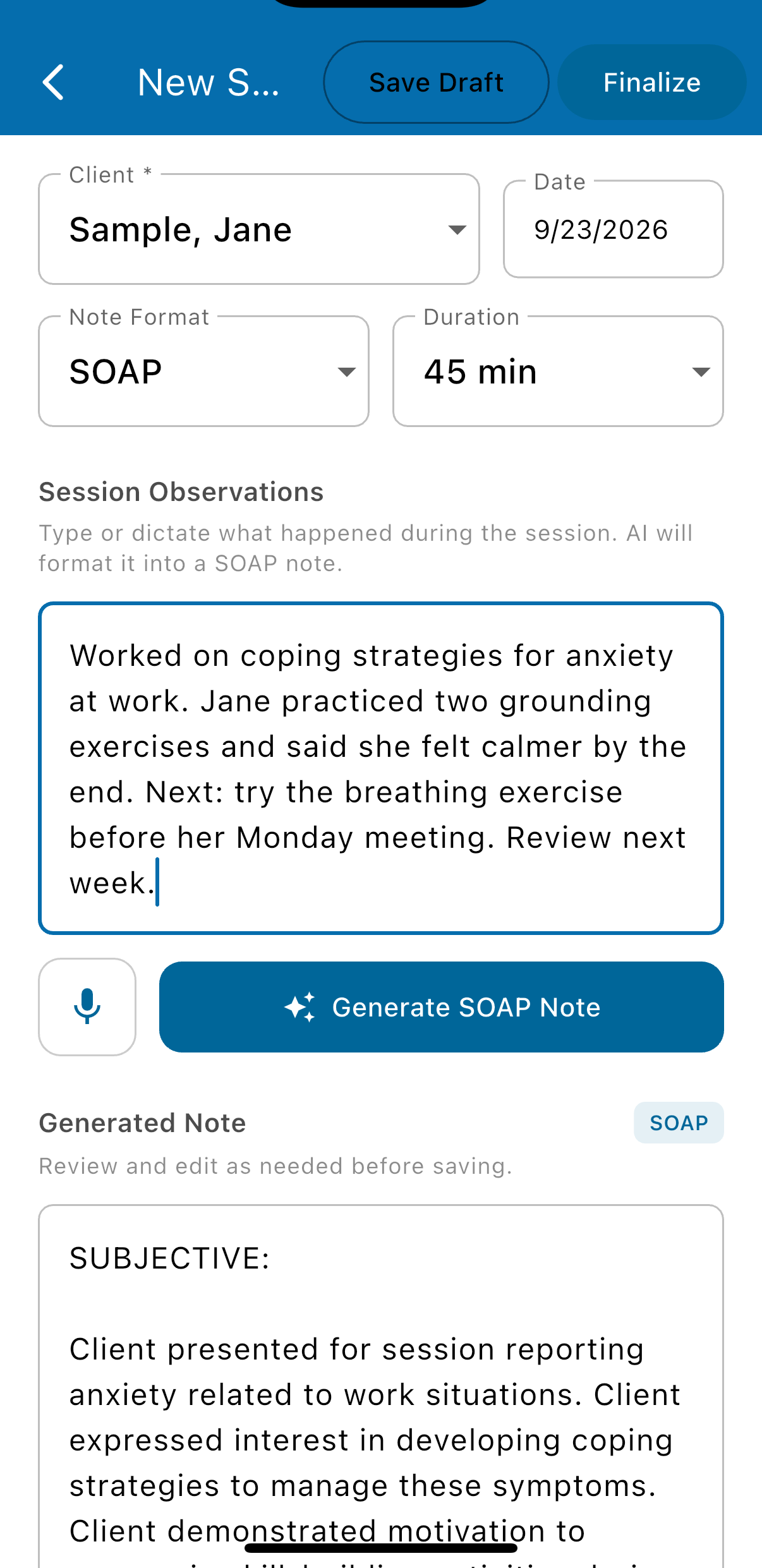
Choose the client, check the date, and pick the note format: SOAP, DAP, or Narrative. Set the session length. The Generate button changes to match the format you picked.
3. Describe the session in plain words
In Session Observations, type what happened: what you worked on, how it went, and what comes next. A few sentences is enough. You don't need to write the note itself.
You can dictate instead of typing: on the phone app, tap the microphone button next to Generate; on the web app, tap Record above the Session Observations box. Voice dictation is included on every paid plan, and Starter accounts can use it while they still have free AI notes.
4. Tap Generate
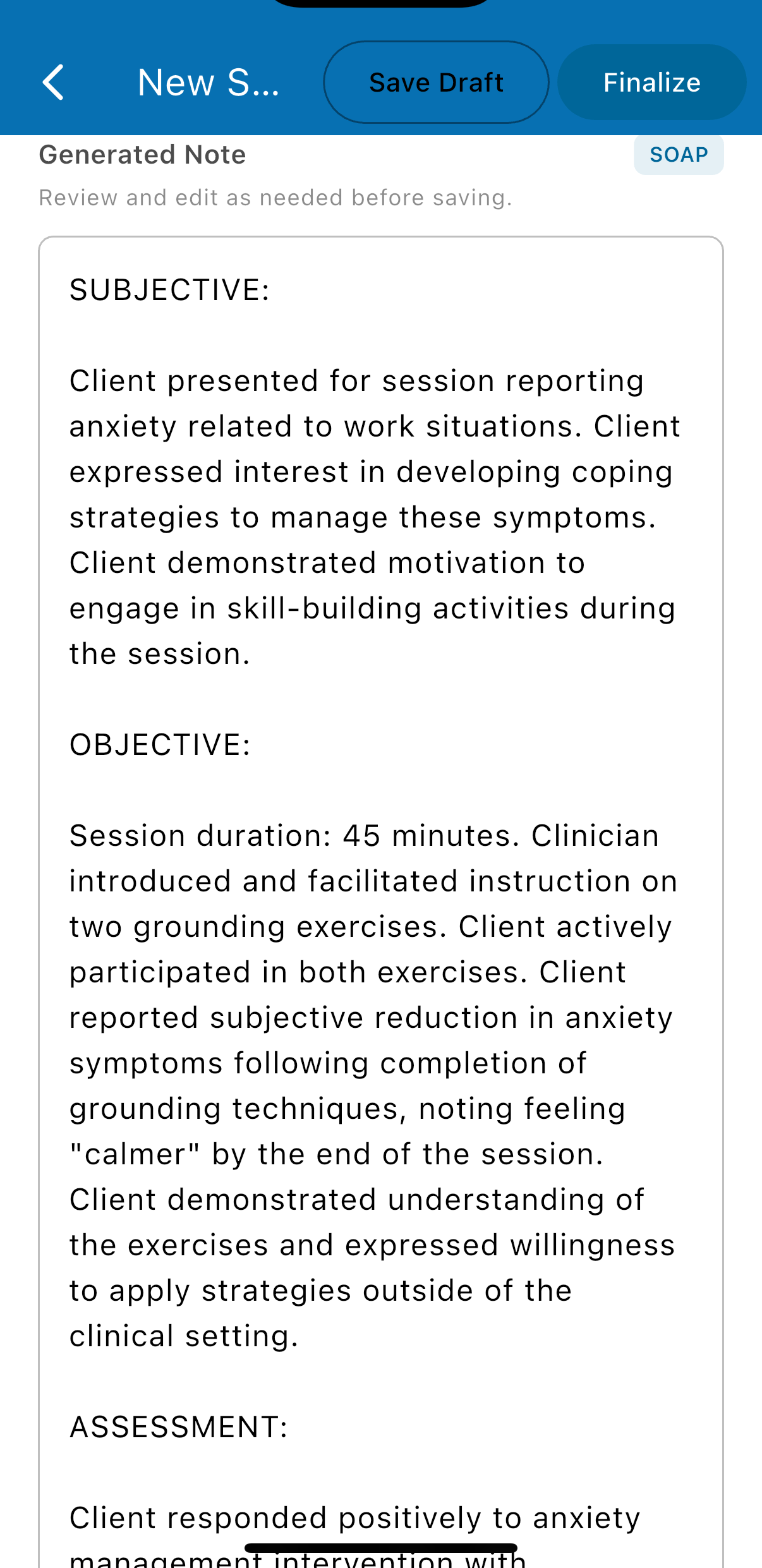
Tap Generate SOAP Note (or DAP, or Narrative). In a few seconds the draft appears under Generated Note, written in your format from what you gave it. It only uses what you described; it doesn't add symptoms, interventions, or outcomes you didn't mention.
5. Read it, then change anything
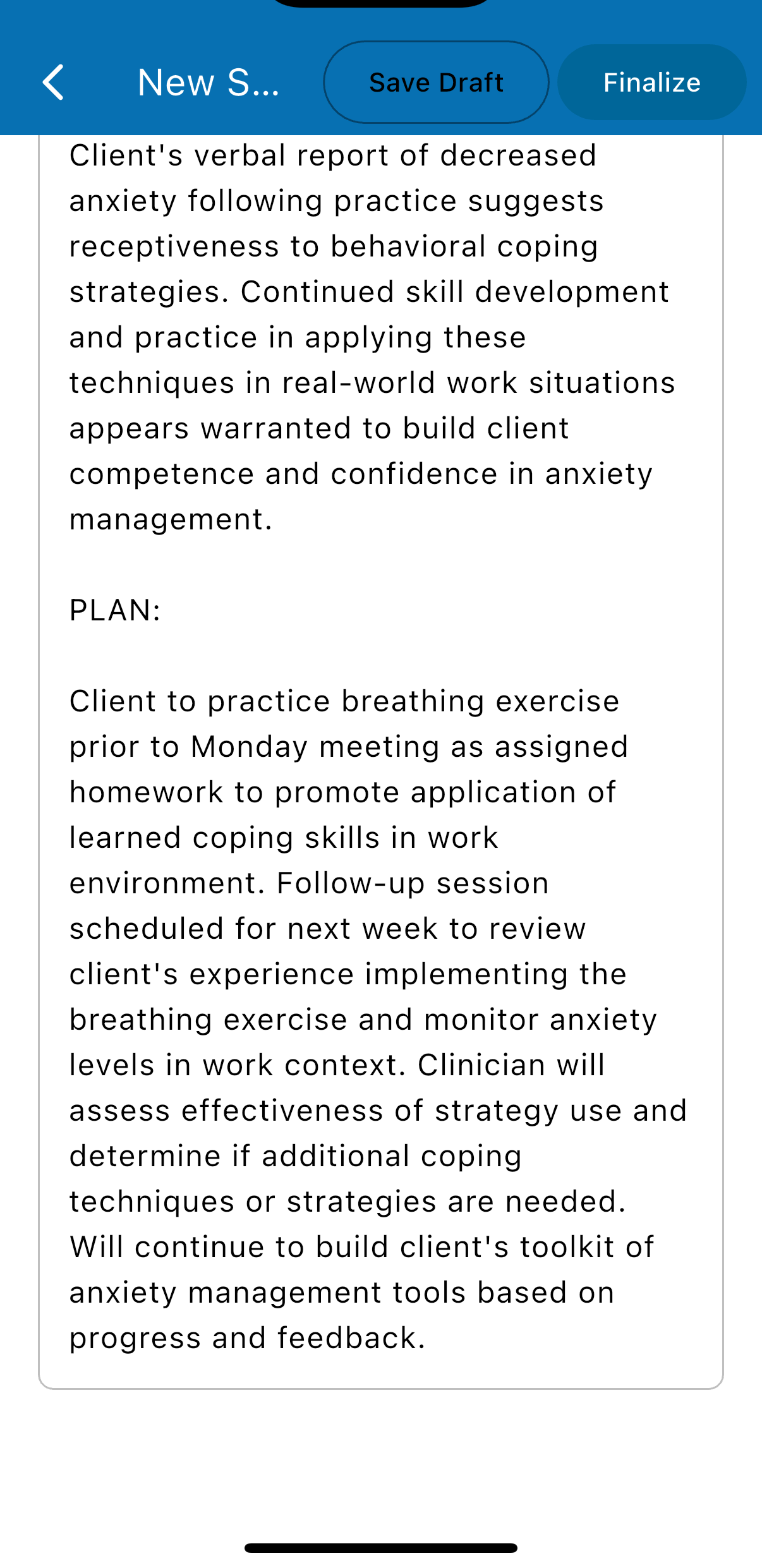
The generated note is a draft in an ordinary text box. Read it through. Edit any line, add what is missing, delete what doesn't belong. It is your note, and your clinical judgment is the last word.
6. Save it
Two choices, at the top of the screen on the phone app and below the note on the web app:
- Save Draft keeps the note as a draft you can come back to. It shows in Session Notes with a Draft label.
- Finalize saves the note to the client's record as final, time-stamped, and it shows in Session Notes with a Final label. Finalize is only available once a note has been generated.
Your free AI notes
Every Starter account includes 20 free AI notes. The count shows under the Generate button. When they are used up, Generate offers an upgrade; Solo Standard and Solo Pro include unlimited AI notes. Typing a note yourself never counts against the allowance.
Good to know
- Nothing is finalized until you tap Finalize. The only time EMRFlow saves on its own is when Generate fails (next point).
- If Generate fails for any reason (a lost connection, for example), your typed observations are kept as a draft so you don't lose them.
- The note refers to the person as "client" or "patient," never by name. Change that if your practice writes notes differently.
Was this article helpful?
That’s Great!
Thank you for your feedback
Sorry! We couldn't be helpful
Thank you for your feedback
Feedback sent
We appreciate your effort and will try to fix the article