An attendance log lists every patient assigned to the location you pick, not only your own clients. At a site that other therapists also visit, some of the patients on your log are seen by someone else. Give each of them the status Not on Caseload.
In the app on your phone or tablet
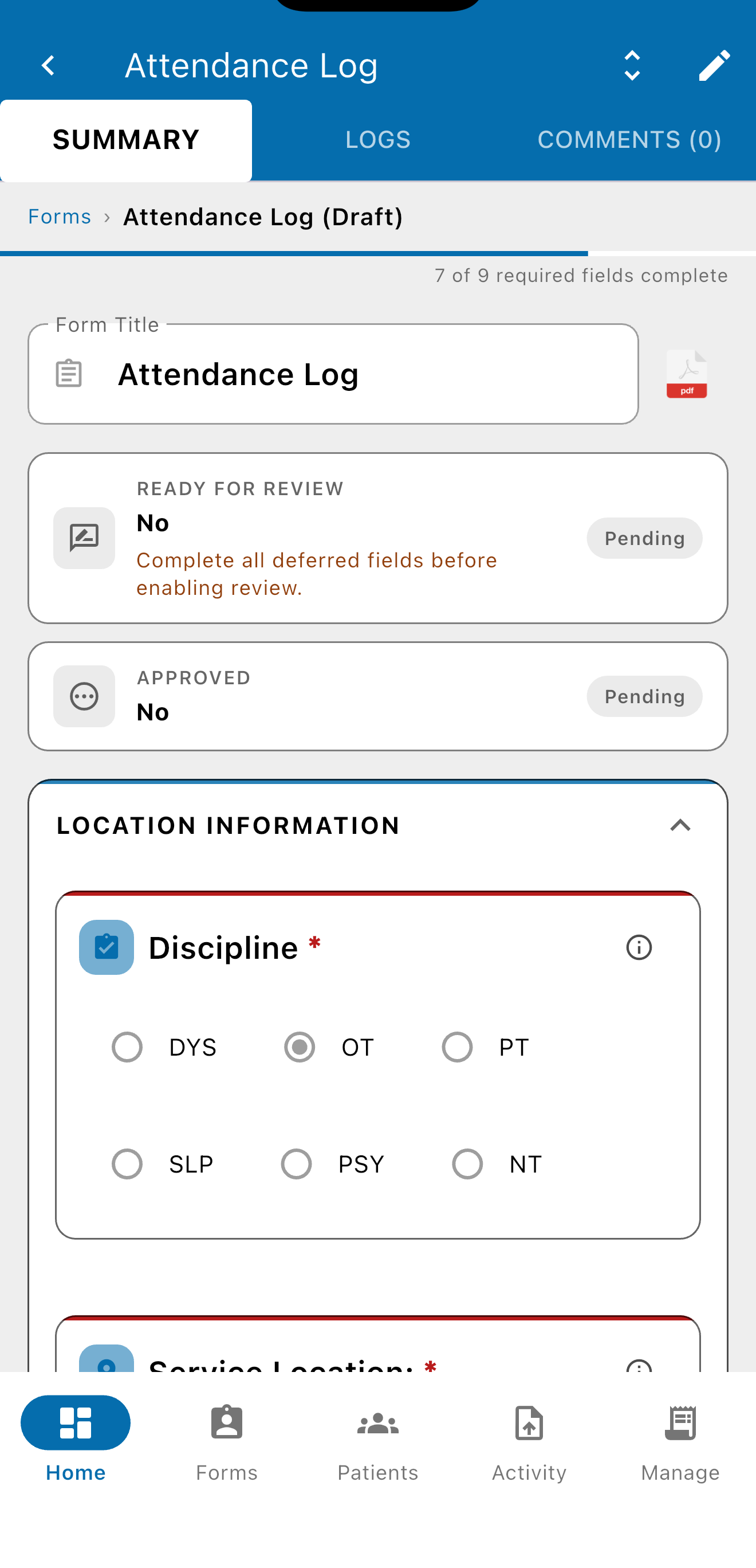
- Open the log, tap the pencil (Edit form), and go to the LOGS tab.
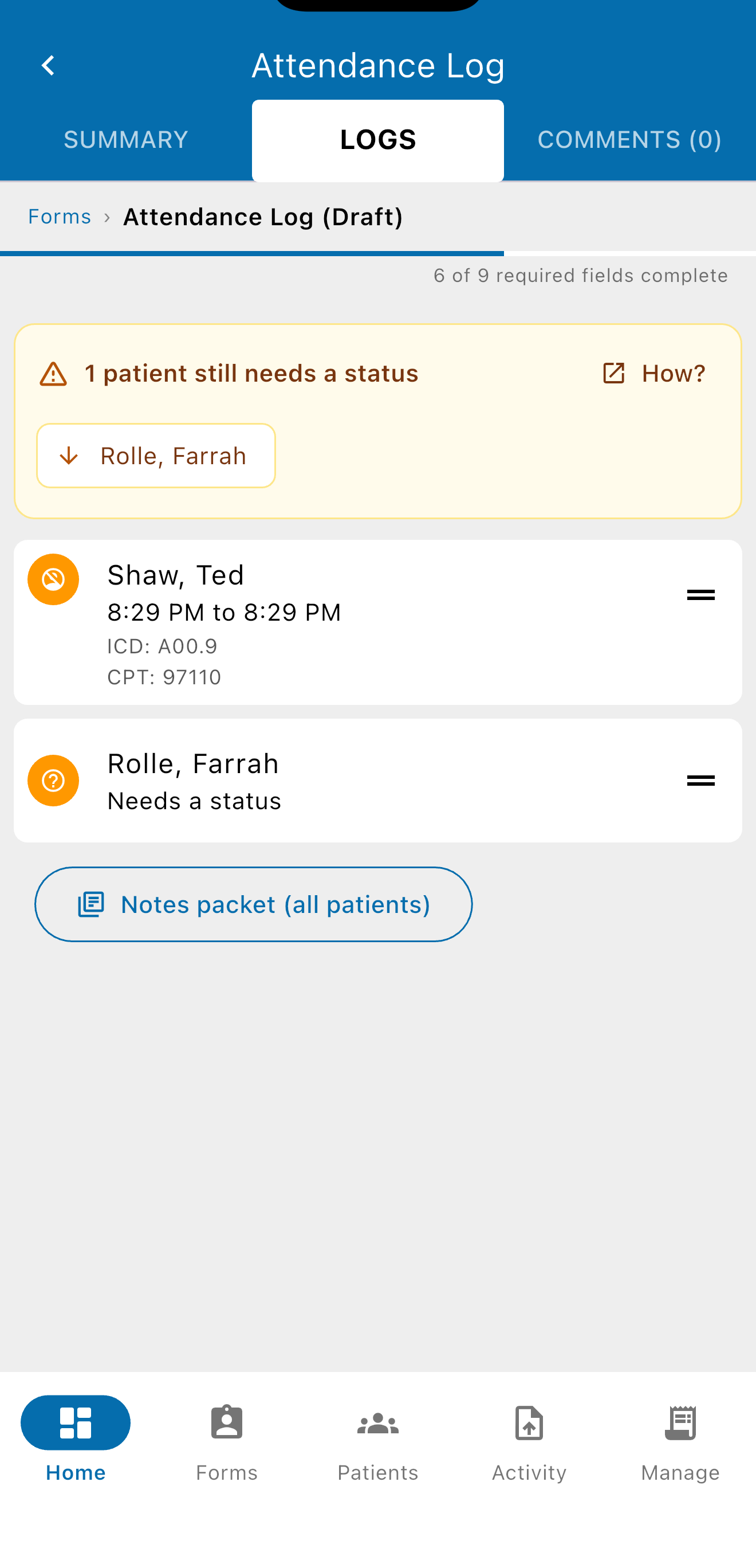
- Tap the patient's row. While any patient still needs a status, the top of the LOGS tab says how many (for example, 2 patients still need a status) and shows a button with each of their names. Tap a name to go straight to that row.
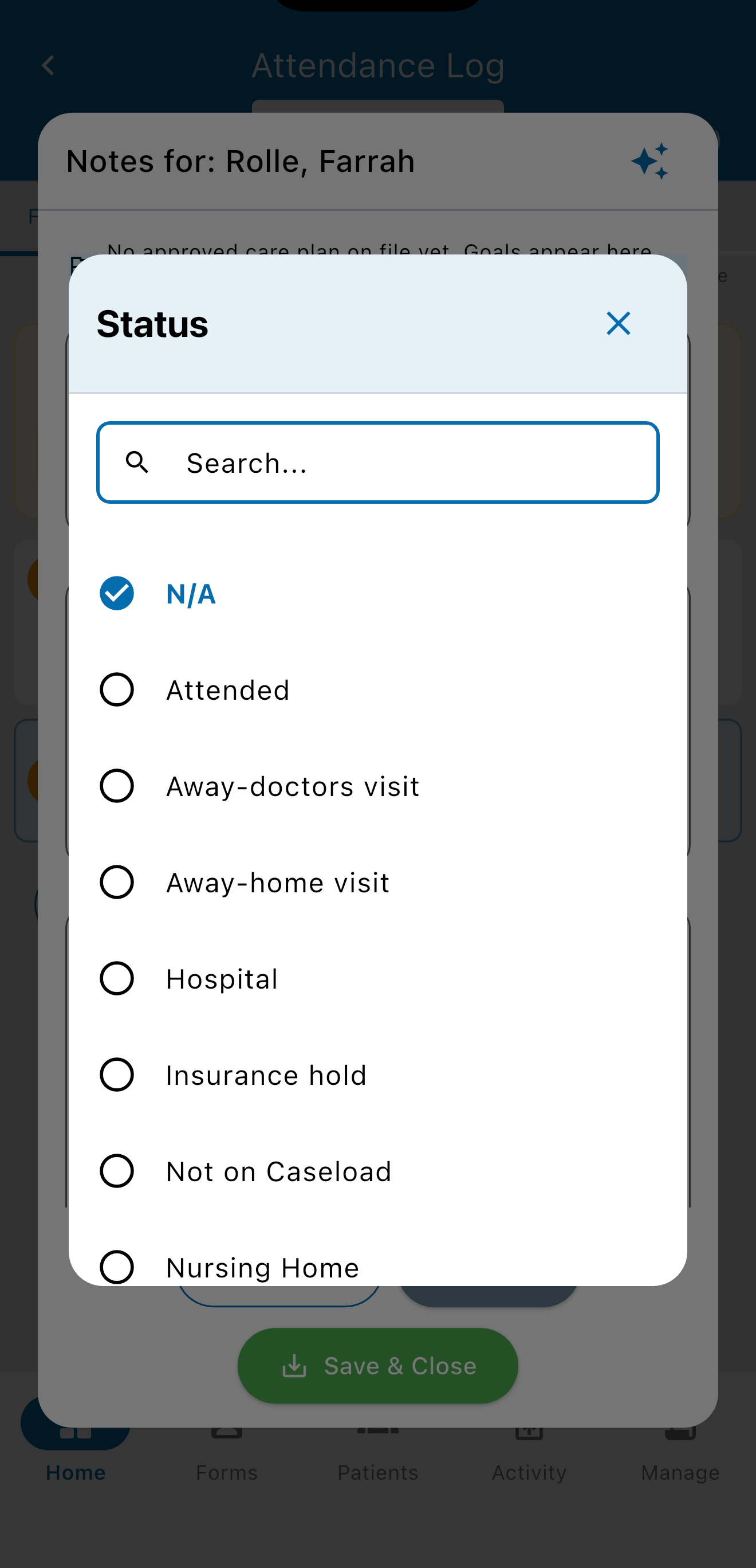
- Set Status to Not on Caseload.
- Tap Save, or Save & Close to save and close the row in one step. Save keeps the status, codes and notes together. Leave the time as it is: a Not on Caseload row records no session, so its start and end times match. If the row already had session minutes recorded, the app asks you to confirm the change first and names what it removes (the session minutes, Notes, the SOAP notes, Achieved and Criteria Met; the codes stay). The message says Not Attended; that's expected. Tap Proceed to go ahead.
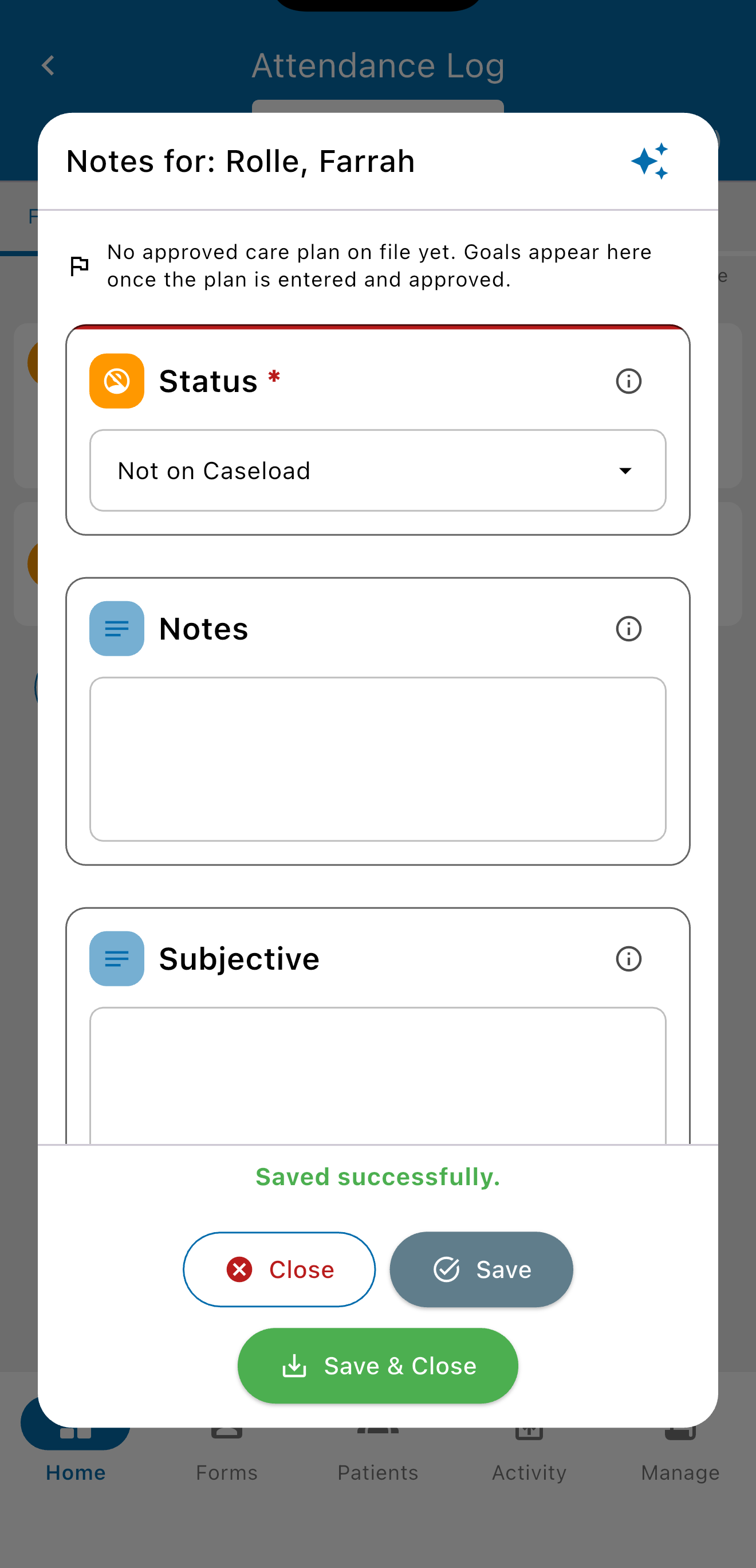
- Tap Close. If you tapped Save & Close, the row is already closed.
On the web app
Open the log, choose Not on Caseload in that patient's status menu, then save the log. The status menu stays locked on a row that has session minutes recorded.
What it does
Not on Caseload is a real status, so the row no longer holds the log back from Ready for Review or approval. The patient stays on the log with the status Not on Caseload. Only Attended rows are sent on for billing, so a Not on Caseload row isn't billed.
Don't delete the log
Deleting a log doesn't take a patient off the list: the next log at that site lists them again. Deleting also removes everything on the log, including your notes and signatures, and it can't be undone.
Related: Attendance Logs: Recording Your Sessions and A patient is missing from my attendance log roster.
Was this article helpful?
That’s Great!
Thank you for your feedback
Sorry! We couldn't be helpful
Thank you for your feedback
Feedback sent
We appreciate your effort and will try to fix the article