An attendance log carries one row per patient at your location for the day.
- Set each patient's status; the session window records the time span.
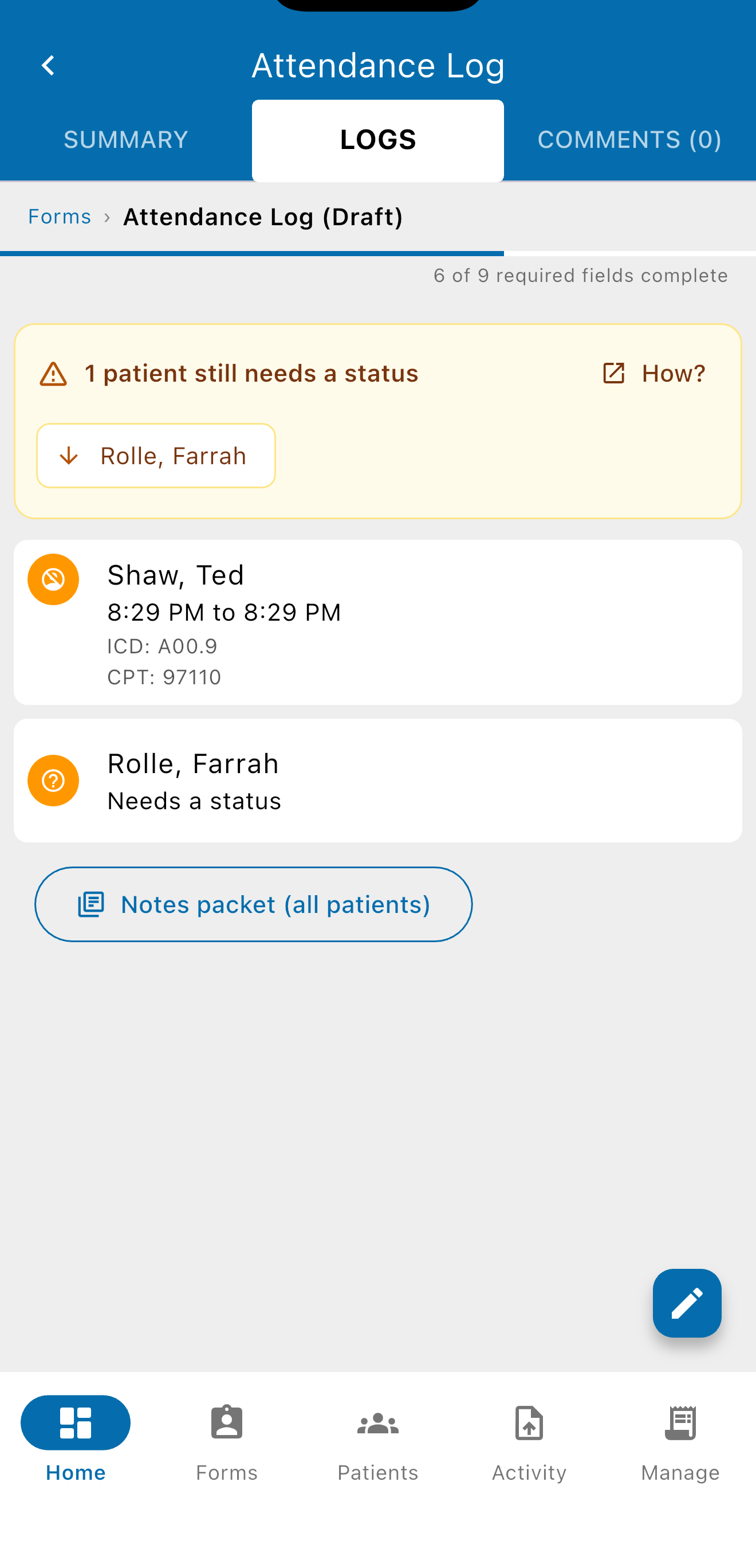
- A row with no status keeps the log from being marked Ready for Review or approved, and the app names who is missing, so fill every row before you submit.
- Tap any entry to read it without entering edit mode; the PDF is one tap from inside.
On a brand-new log, save once first
In the app on your phone or tablet, when you create a new attendance log, the LOGS tab is empty until you save the log once. That is expected, not a fault: the log has to exist before it can hold per-patient rows. Fill in the details on the first tab, tap Save, and the app keeps the form open and fills the LOGS tab with your patients. From there you tap each patient to write their note.
On the web app, a new log's Session Log lists the patients at the location as soon as you pick the location; you don't need to save the log first.
From draft to Ready for Review
- Fill every patient row.
In the app on your phone or tablet, tap each patient, set their status and tap Save (or Save & Close), which saves the status, codes and notes together. If you change a row that had a logged session from Attended to another status, the app warns you first, then sets the session to zero minutes and removes Notes, the SOAP notes, Achieved and Criteria Met; the codes stay. A row left on N/A isn't saved: the app asks you to pick a status first. The top of the LOGS tab says how many patients still need a status and shows a button with each name that takes you to that row, plus a How? link to help.
On the web app, set each row from its status menu in the Session Log, then save the log. The status menu stays locked on a row that has session minutes recorded.
On both, any row left without a status blocks the log, and the app names exactly who still needs one. For a patient on your log who isn't yours, choose Not on Caseload: see A patient on my attendance log isn't on my caseload.
- Check the session window. The time selection must describe a real span: the log will not accept a window whose start and end are the same.
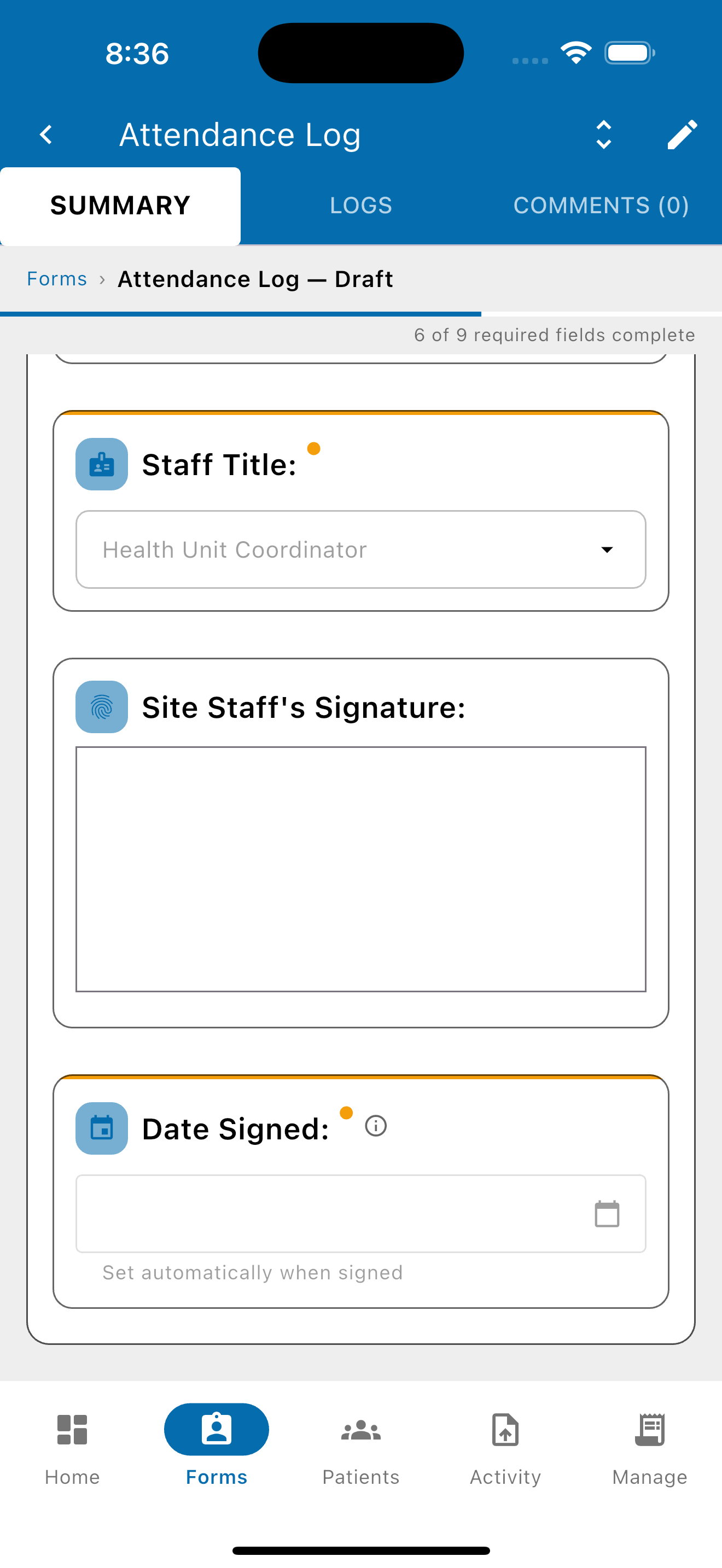
- Sign. Draw on the signature pad, then tap Sign and confirm (on the web app, the signature is saved as you finish each stroke). The date signed stamps itself. Signing a saved log needs a connection: without one, the app on your phone or tablet says it couldn't save your signature and keeps your drawing so you can tap Sign again, and the web app clears the pad so you can draw it again once you're connected.
- Mark the log Ready for Review. In the app on your phone or tablet, the Ready for Review card sits near the top of the form. It unlocks once every required field is complete; the hint beneath it tells you what is still missing if it will not budge. On the web app, click Ready for Review. If a signature is still needed, the button unlocks the signature pads first: sign, then click Submit for Review. The button stays off while anything else is missing, and a note under it says what.
- Save. In the app on your phone or tablet, tap Save. On the web app, Ready for Review (or Submit for Review) saves the log for you. The log leaves your drafts and lands in your administrator's review queue. From there it comes back Approved, or you get a comment on the form telling you what to fix before it can be approved.
A log can't be marked Ready for Review or approved while any patient on it has no status, in the app on your phone or tablet and on the web app, and the app tells you who still needs one. If the save is refused for that reason, the app on your phone or tablet opens the LOGS tab at the first patient who needs one. In the app on your phone or tablet, a log that is already marked Ready won't save its Summary until every patient has a status, so give each one a status, or switch Ready for Review off to save it as a Draft. Signing isn't blocked. On the web app the log still saves, but it can't be approved until every patient has a status. The same check runs when your administrator approves the log.
The site staff signature doesn't wait. Site staff sign to verify you arrived, so their pad is ready the moment the log exists, before any patient entry is recorded. Hand the device over at the door and collect the signature; every other pad, including your own certification, still waits until at least one patient entry is marked Attended.
Changing the location on a Draft log
Picked the wrong Service Location? While the log is a Draft you can change it, in the app on your phone or tablet and on the web app. The same goes for a group session log. Pick the new location and the app asks Change the location? Tap Change location to go ahead, or Cancel to leave the log as it is. A change:
- replaces every patient on the log with the patients at the new location, each with no status yet;
- erases all statuses, notes, minutes and codes on the log;
- clears the therapist and site staff signatures.
It can't be undone, and it needs a connection. Anyone who can edit the log can change its location. A log that's Ready for Review or approved keeps its location until it's back in Draft (the app says Return this log to Draft to change its location.), and a log that has been filed or exported keeps its location. If someone changes the location on another device while you have the log open, the app won't save over it and asks you to open the log again. On the web app, the patients are listed in the log's Session Log rather than on a LOGS tab, and the change also saves your other edits on the page.
Who is on a saved log
A saved log keeps the patients it has. Saving it again doesn't add anyone assigned to the location later; to include them, start a new log for the location. If the log already holds sessions you recorded, see the tip below.
One kind of log does pick up patients when it's saved: a log saved with no patients, because nobody at its location could be logged yet. In the app on your phone or tablet, the next time you save it, it takes on the patients at its location who can be logged then, and the app says the LOGS tab now lists them. This needs a connection. If Ready for Review was switched on for that save, the log is saved as a Draft instead, because each patient needs a status first. A site staff signature already on the log stays; a therapist's signature is cleared, and the app asks you to sign again.
On the web app, a log with no patients in its Session Log can't be marked Ready for Review or approved, and saving it there doesn't add anyone. The web app says to open the log in the app on your phone or tablet to add its patients, or to start a new log for the location. If patients were added to the log somewhere else after you opened it on the web app, your save isn't made: reopen the log to see its patients, then make your changes again.
Was this article helpful?
That’s Great!
Thank you for your feedback
Sorry! We couldn't be helpful
Thank you for your feedback
Feedback sent
We appreciate your effort and will try to fix the article